Written by Dr. Leo Maren · Co-founder of Fwocus · Behavioural scientist · PhD, Imperial College London
The cute look on this page does one job: it makes the timer something you want to open. The countdown does a different job. It gives a small task a clear end. Most people who search for a cute timer need both, but they mostly talk about the first one.
Use a cute timer for the tasks you avoid
A short countdown helps most with tasks that are small and unpleasant. Examples are one email you do not want to answer, a form, a pile of laundry, or ten flashcards. The task is not hard. Starting it is.
My most-used length is not 25 minutes. It is 10. I use a 10-minute countdown for admin work that I put off for days: invoices, reference letters, a reply to a difficult message. Often I keep going after the chime. Sometimes I stop, and the task is still 10 minutes further along than before.
This is also where the pastel look helps me most. I do not use cute scenes for my research writing. I use them for dull tasks. A soft, bright scene changes how a task I dislike feels for the first minute, and the first minute is the problem.
Choose the shortest length that ends with something you can see
The tabs give you 5, 10, 15, 25, 30, 45 and 60 minutes. Choose by the result you want at zero, not by how long you think you should work.
5 minutes: one reply, one clear desk, one paragraph outline. Use it when you cannot make yourself start.
10 minutes: one set of flashcards, a short worksheet section, or the first draft of an email you dread.
15 minutes: one short article and three notes on it, or one problem from a homework set.
25 or 30 minutes: one reading block or one essay section.
45 or 60 minutes: long work that you already started and want to protect.
If no tab fits, press − or + to change the length by one minute before you start. The ↓ and ↑ keys do the same. During a session, these buttons add or remove a minute without a restart.
A common mistake is to choose 60 minutes for a task you avoid. A long countdown makes the start feel heavier. As a cute study timer, this page works best when you start with 5 or 10 minutes. If the work goes well, press + before the chime.
Write the first action in the line above the digits
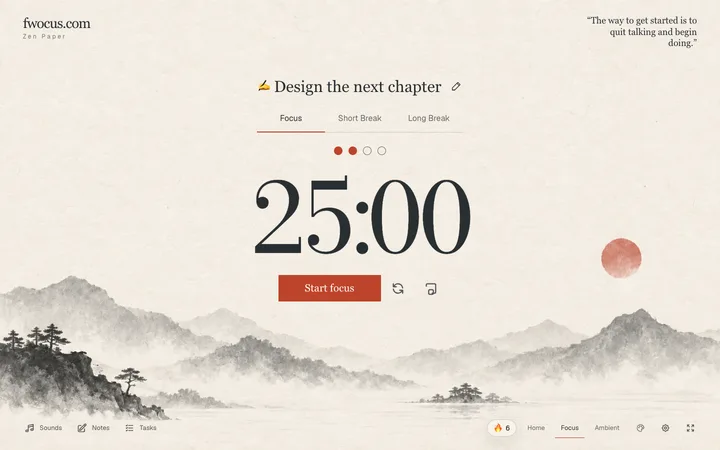
Click the line above the timer and type. Write the first action, not the goal. "Open the worksheet and do question 1" works better than "math homework."
Research on planning supports this. In 2006, Peter Gollwitzer and Paschal Sheeran reviewed 94 tests of implementation intentions. An implementation intention is an if-then plan, such as "When situation X happens, I will do Y." People who made these plans reached their goals more often than people who only set a goal. The average effect was medium to large (d = 0.65).
The review does not show that a word next to a timer makes you work. The plans in those studies named a specific situation and a specific action. Typing "laundry" into a box is a weaker version. To get closer to the tested form, make the Start button the "if": "When I press Start, I fold the first shirt."
A cute kitchen timer or a cute screen timer?
Many results for "cute timer" are physical timers: wind-up animals, small cubes and plastic fruit. A physical timer is a good choice for some tasks and a poor choice for others.
A wind-up timer has no screen and no tabs. You turn it, put it down, and it rings. It also ticks, and a spring dial is hard to set to an exact minute. Many wind-up timers stop at 60 minutes.
For three years, a small chick-shaped timer sat on my kitchen counter. A colleague gave it to me as a joke. I used it for 15-minute tidy-ups, and it worked well. When I moved it to my desk for writing, the ticking pulled my attention, and I moved it back.
My rule now is simple. I use a physical timer for tasks away from the computer. I use a screen timer for tasks on the computer. The screen timer sits where the work is, it is exact, and it stays quiet until the chime.
This countdown calculates from the end time, so it stays correct when you work in another tab. While it runs, the remaining time shows in the tab title. In browsers that support it, the page also keeps the screen on until the timer stops.
Use a busy scene for short tasks and a calm scene for long ones
The scene on this page is Candy Clouds: swirls of pink, blue, lilac and mint cloud, with small cloud islands. There is color everywhere. I like it for 5- and 10-minute tasks, when the mood of the screen matters more than calm.
A busy scene is fun for a few minutes. For 45 minutes, the same scene can start to compete with the work. If you notice that your eyes move to the background, the scene is too busy for that task.
For long countdowns, I change to a calmer pastel scene. The Soft Orbit scenes in the Fwocus app are an example: a flat lavender sky with round shapes in peach and cream at the edges. The middle stays empty, so the digits have clear space around them.
Candy Clouds is one of more than 60 scenes in the Fwocus app, in five themes. In the app, you can pick a scene for each task and save your sessions. Tasks, notes, focus stats and your streak sit next to the timer.
FAQ
Does the cute timer play a sound?
Yes. A short bell plays when you press Start, and a longer chime plays at zero. The page plays no music or background sound. To mute the chimes, mute the tab in your browser.
Can I set a time that is not on the tabs?
Yes. Press − or +, or the ↓ and ↑ keys, to change the length by one minute. The countdown goes up to 12 hours.
Is there a cute Pomodoro timer with breaks?
This page runs one countdown at a time and does not start a break for you. For focus and break cycles, use the Pomodoro timer on the aesthetic timer page. In the Fwocus app, you can set the focus and break lengths yourself.
Do I need an account?
No. The page does not ask for a name or an email, and nothing you type is uploaded. When you close the tab, the timer and the task line reset.