Written by Dr. Leo Maren · Co-founder of Fwocus · Behavioural scientist · PhD, Imperial College London
The best timer is the one you can reach without leaving your work
A countdown tells you when to stop. A stopwatch tells you how far you have come. When the timer lives in a browser tab, that measurement sits one keystroke from the work itself.
I used to time writing blocks with my phone. Every glance at the time showed me a notification. One glance became a ten-minute scroll through nothing important. My two-hour session lost twenty minutes to a device that was supposed to protect it.
I moved timing to a pinned browser tab and put the phone face-down across the room. The checking habit broke in about a week. There was nothing to check except the tab, and the tab showed only numbers. Sessions got longer and calmer.
A tab timer removes the activation energy of timing. No app to find, no device to pick up, no unlock screen. You press Space and work. That small friction difference decides whether you time the session at all.
Pin the tab and give it a permanent home
An unpinned timer tab drifts. It gets buried under research tabs, closed in a purge, lost in a restart. Pin it and it shrinks to a favicon on the left edge, always in the same place.
Jump to it with Ctrl+1 if it is your first tab, or Ctrl+9 for the last. Either way, checking the time costs one keystroke and no mouse. The less checking costs, the less it interrupts.
Browsers throttle background tabs to save battery. That sounds dangerous for a timer, but it is not. This stopwatch measures against the system clock, not against frame ticks. Throttling can delay the display refresh, but the elapsed time stays exact. Switch back to the tab and the numbers are correct.
I once timed a ninety-minute deep work block with the tab buried under forty others. Midway I worried it had paused. It had not. The lesson stuck: trust the clock, not the tab's visibility. The numbers do not need your attention to keep counting.
Keep the phone out of the timing loop
A phone timer bundles measurement with the most distracting object you own. Every time check is a doorway to messages, news, and feeds. The timer works, but the delivery mechanism works against you.
A tab timer separates the two jobs. The laptop measures. The phone waits in another room. For students this separation is the whole strategy: timer on the laptop, phone on airplane mode in a drawer.
The mechanism is simple. Attention follows the nearest novelty. A phone in reach offers novelty every thirty seconds. A browser tab offers digits. Digits lose to notifications every time, so remove the contest.
The exception is honest: if your work happens on the phone, a tab timer cannot help. Mobile-first workflows need a different setup. But if your work happens in the browser, the timer belongs in the browser.
Quick timing for quick tasks
Not every timed task deserves an app launch. A ten-minute tidy-up, a recipe step while the recipe sits in the next tab. A customer call you want to log, one focused email draft. Opening a dedicated timer for these takes longer than the decision to time them.
The tab timer fits tasks measured in minutes. Space to start, Space to stop, glance at the total. The cost of timing drops near zero, so you time things you would otherwise guess at. Guesses about time are reliably wrong.
Laps work here too. Press L between the sections of a longer task and you get a breakdown for free. I lap each phase of a deploy: build, verify, monitor. The lap list shows which phase eats the afternoon. It is always monitoring.
Count-up fits these small tasks because there is nothing to run out of. A countdown over a ten-minute tidy-up adds urgency to tidying. A stopwatch just records that you did it. Achievement, not alarm.
Four keys run the pinned tab
Four keys cover everything. Space starts and pauses. L records a lap. R resets. F toggles fullscreen when you want the digits large.
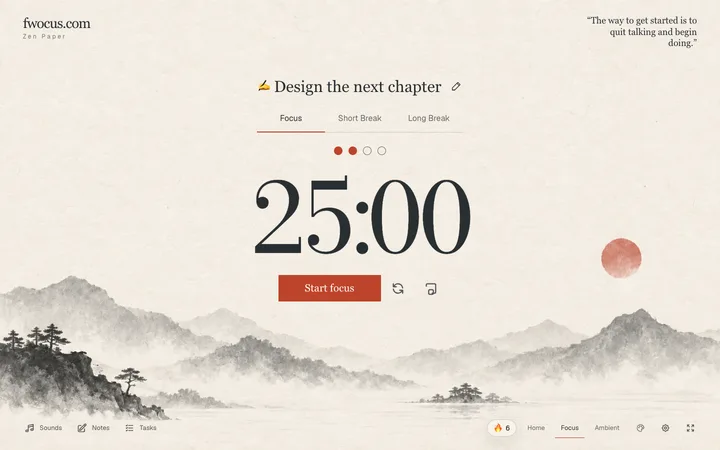
My ritual: pin the tab once, then never think about it again. Ctrl+1, Space, work. The Zen Paper theme keeps the tab calm when I glance at it. No badges, no red dots, no streaks. Just time, measured.
When a task needs structure instead of open measurement, fixed intervals with alarms, or background sound, reach for a different tool. The Fwocus app covers those with Pomodoro sessions and ambient soundscapes. The tab stays the home of simple count-up timing.
FAQ
Does the timer keep running when I switch tabs?
Yes. The timer measures against the system clock, so background throttling cannot pause it. Switch back to the tab and the displayed time is exact.
Will the timer survive a browser restart?
No. If the browser closes, the timer stops with it. Pin the tab so it is harder to close by accident, and for anything critical, note the elapsed time before restarting.
Is a tab timer accurate enough for serious timing?
For minutes and hours, yes. System-clock measurement is exact at that scale. It is not the tool for millisecond sport timing, where start and stop reaction error dominates.
How is a tab timer better than my phone's timer?
It separates timing from notifications. The phone bundles the clock with every distraction you own. The tab shows only the time, one keystroke away, with nothing else competing for attention.