Written by Dr. Leo Maren · Co-founder of Fwocus · Behavioural scientist · PhD, Imperial College London
Most tools called a task timer are time trackers. They count up, log hours against a project, and help you bill a client. This page does the opposite job. It counts down from a time you choose for one task, so the question is not "how long did I work?" but "can I finish this before the chime?"
If you need a record of hours for a client, use the billable hours timer. If you want to measure how long a task takes without a limit, the study stopwatch counts up. If you want a fixed end that pushes you to finish, stay here.
Name the task before you choose the time
Click the line above the timer and replace the prompt with the task. Write it as a verb, an object and a finish line. "Reply to the three emails from Monday" works. "Email" does not, because it has no end.
The finish line matters more than the wording. A countdown is only useful when you can tell, at the chime, whether you finished. "Read chapter 6" has a finish line. "Work on chapter 6" does not.
Write one task, not two. Sophie Leroy (2009) named one cost of switching attention residue. In her studies, people who moved to a new task while the last one was still unfinished kept thinking about the old one, and they did worse on the new one. The same studies found less residue when people finished the first task under time pressure.
What this shows: an open task follows you into the next one, and a clear deadline helps you close it. What it does not show: that a countdown makes you work faster. The tasks were short laboratory puzzles, not a chapter or a report. In practice, I read it as an argument for small, finishable tasks with a clear stop.
Your first guess will be too short
Before you press Start, guess how long the task will take and set the timer to that guess. Do not add a safety margin yet. The point of the first session is to test your guess.
Most guesses are short. Buehler, Griffin and Ross (1994) asked 37 psychology students when they would finish their honors theses. Their average best guess was 33.9 days. The average actual time was 55.5 days, and only about 30% finished by the date they predicted.
That study measured a large project over weeks. Small tasks are easier to estimate, and the research does not tell you how wrong your 20-minute guess will be. My own guesses follow a pattern. For small admin tasks, I am usually close. For anything that involves writing, I am short almost every time, because I forget the time I spend deciding what to say.
One method helps. Kruger and Evans (2004) found that people gave longer and less biased estimates when they first listed the steps of a task. The authors also note a limit: listing steps removes the tendency to underestimate, but it does not make every estimate correct. Some people then overestimate.
So before you start, say the steps to yourself. "Open the file, find the three figures, write the captions, check the numbers." Then set the time.
Choose a length from the task, not from habit
The presets are starting points. Use −1 and +1, or the arrow keys, to set your exact guess.
5 minutes: one step of a task you keep avoiding. A small start often turns into a full session.
10 to 15 minutes: admin tasks with a clear end, such as forms, short replies, or tidying notes.
25 to 30 minutes: one section of reading, one problem set question, or one page of a draft.
45 to 60 minutes: tasks with a slow start, such as writing or analysis, where a short block ends before you settle.
If you always choose 25 minutes, you are running a Pomodoro, not a task timer. That is a good method, and the aesthetic timer runs it with breaks. A task timer is different because the task sets the length.
When the chime plays and the task is not done
This is where most people lose the value of the timer. They keep working and the countdown becomes a decoration. Make one decision at the chime instead.
Almost done: press + for a few minutes, once. Then stop.
Far from done: stop. Write the remaining steps, guess again, and start a new countdown for the rest.
Stopped by the clock in the middle of good work: the task does not suit a fixed end. Use the Flowmodoro timer, which lets you work until you stop and then sizes the break.
I use the "one extension" rule because of a mistake I made for years. I would add five minutes, then five more, then ten. An hour later the task was done, but I had learned nothing about my estimate, and the rest of the plan for the day was gone. Now an extension is allowed once. After that, a missed estimate is information for the next guess, not a reason to keep going.
When the task is done before the chime, press Reset and write down what took less time than you expected. Early finishes teach you as much as late ones.
From one task to a task list
This page holds one task and saves nothing. When you close the tab, the task name and the time are gone. That is fine for a single job, but estimates only get better when you can compare them.
That was the reason we put tasks next to the timer in Fwocus. In the app, you keep a task list, start a session from a task, and see your focus history afterwards. After a few weeks, you can see which kinds of tasks you underestimate.
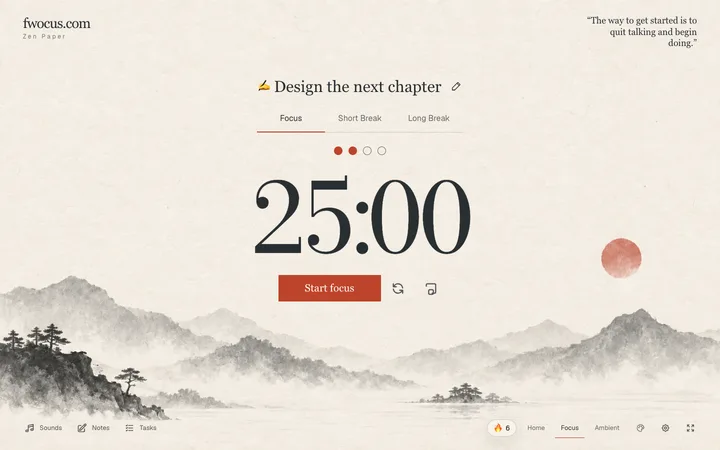
The background on this page is Ink Mountains, a pale ink painting of misty hills, pines and a red sun on cream paper. It is a still picture with a lot of empty space, so the task line and the digits stay easy to read. It is one of more than 60 scenes in the Fwocus app, where you can also change the scene and keep a streak.
FAQ
Is this a time tracker?
No. A time tracker counts up and keeps a log of hours. This page counts down from a time you set and keeps no record. For a log of client hours, use a time tracker or the billable hours timer.
Does the page save my task name?
No. The task line exists only in your open tab. Nothing is uploaded, and there is no account. When you reload the page, the prompt comes back.
Can I set a time that is not a preset?
Yes. Choose the nearest preset, then press −1 or +1, or use the Down and Up arrow keys. Each press changes the time by one minute, also while the countdown runs.
Does the timer keep running in another tab?
Yes. The countdown uses the end time, not a count of seconds, so it stays correct in a background tab. The time left shows in the tab title, and a chime plays at zero.
What happens at zero?
A soft chime plays and "Time's up" appears. The timer does not start a break or a new task by itself. Press Restart to run the same length again, or choose a new length for the next task.